How to use the rosjects
IMPORTANT
* Rosjects are robotics projects
* You use rosjects to make students practice with the simulation and the real robots
Together with the Botbox, you will receive 4 + 1 rosjects:
- One project about ROS2 Basics
- One project about ROS2 Nav2
- Another one about Line Following
- Another one about Perception and Grasping
... and an extra rosject in the ULTIMATE version:
- One rosject about Open-RMF
As a teacher, you received two versions of each rosject:
- The one for the students
- The one for the teacher, that contains the solutions
When you decide, share the project with your students, so they have to solve it using the included simulation and connect to the real lab.
How to share a rosject with the students
- Go to
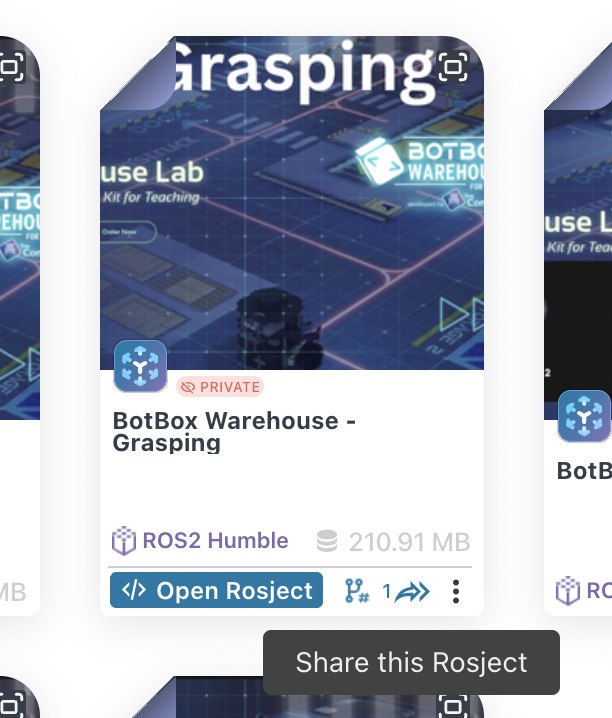
My rosjectsand search the rosject you want to search with the students. Make sure it is not the one that sayswith solutions - Hover over the rosject and the share icon will appear. Click on it
- Copy the link that appears
- Provide it to the students
- Every student that clicks on it will get a copy of the rosject (they need to have an account at the Robotics Learning Studio)
How to launch a rosject
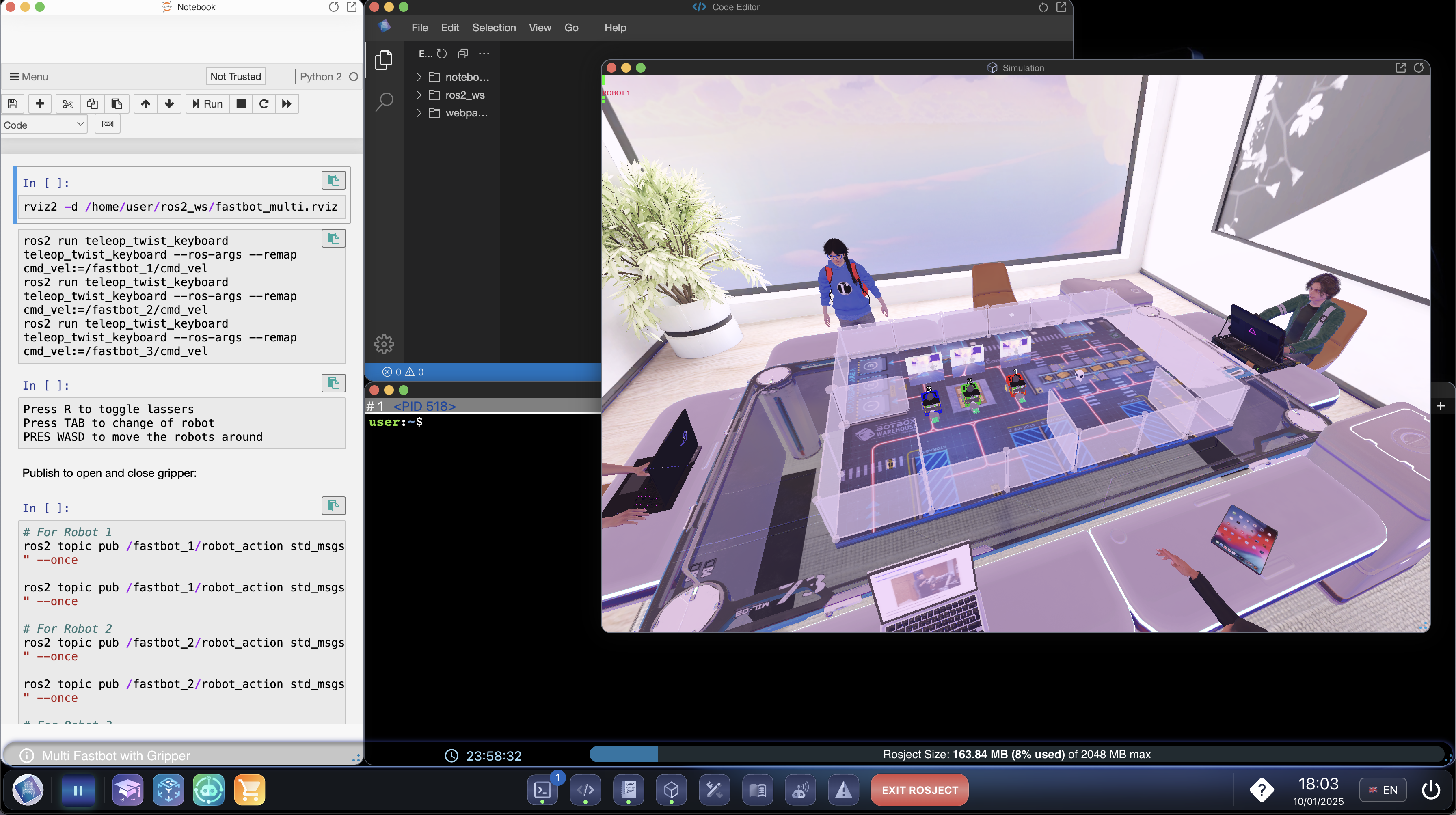
- To open a rosject, students select the rosject on the
My rosjectssection and click on theOpen rosjectbutton - The notebook with instructions, the IDE, the terminals and the simulation will open
- Now the student can work on the rosject
How to connect to the real lab
IMPORTANT
In order to connect to the real lab from a rosject, you need to have configure the lab with the Robotics Learning Studio. Check this section to configure it.
Why to use the cloud lab to connect to the lab
VERY IMPORTANT: By using the cloud lab to connect to the Botbox Lab, you will be isolating the students from the robots themselves. This has two benefits:
-
Will prevent students from modifying the robots file system
-
Will allow quick switch between students during a live class with them
Requirements to connect to the lab using the Robotics Learning Studio:
- Have registered the lab in the platform
- Have a rosject opened
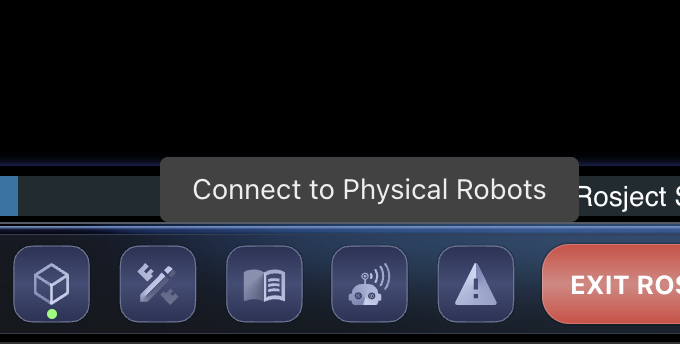
If you have those two things done, then do the following: 1. Click on the icon at the bottom
- Click on the
Connectgreen button of the robot you want to connect to
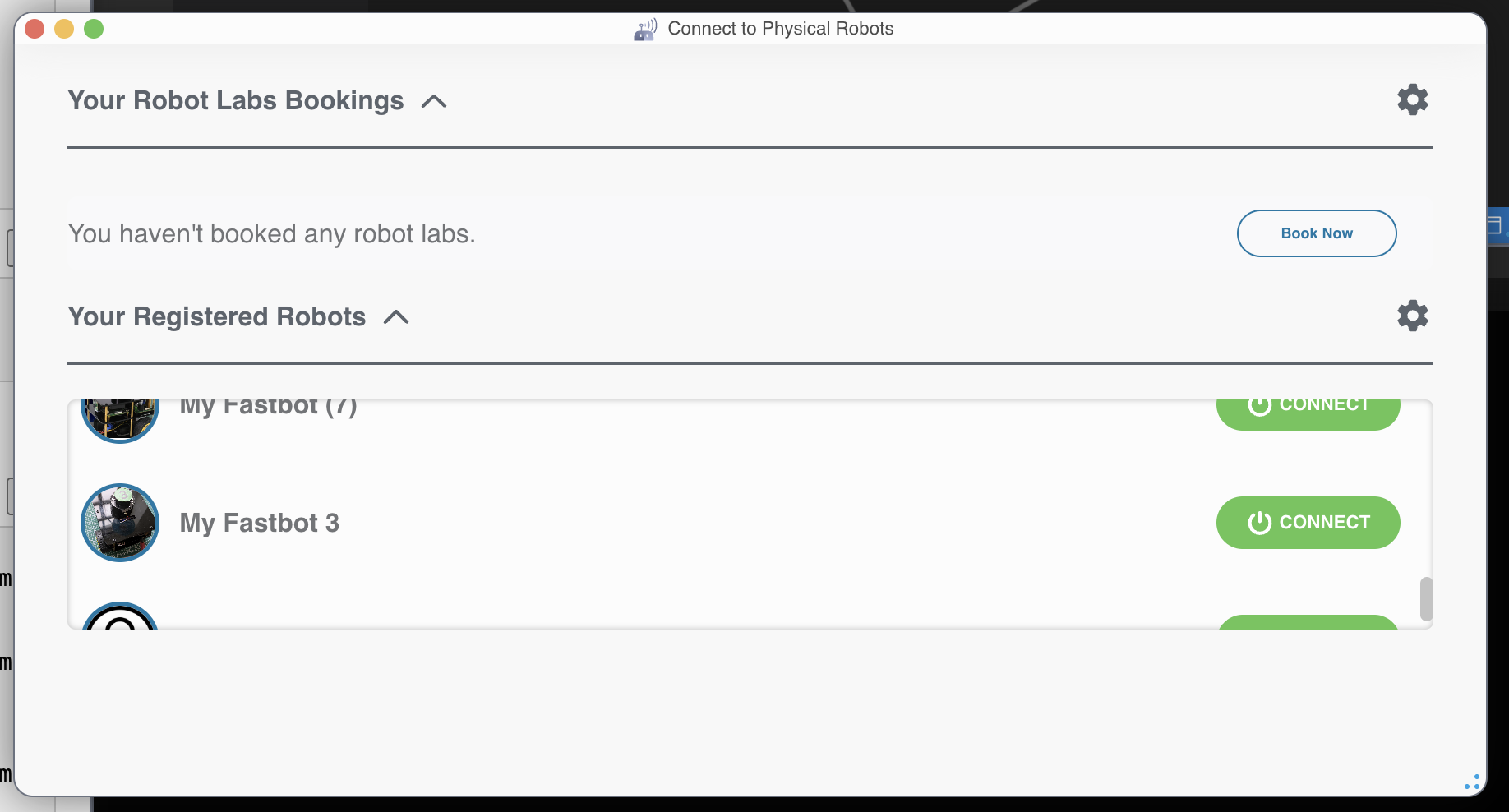
From that point, the terminals will be ROS connected to the robot of the lab. So now, every ROS command executed will be applied over the ROS topics of the robot.
IMPORTANT
The program executed on the cloud computer is actually executed in the real robot!